
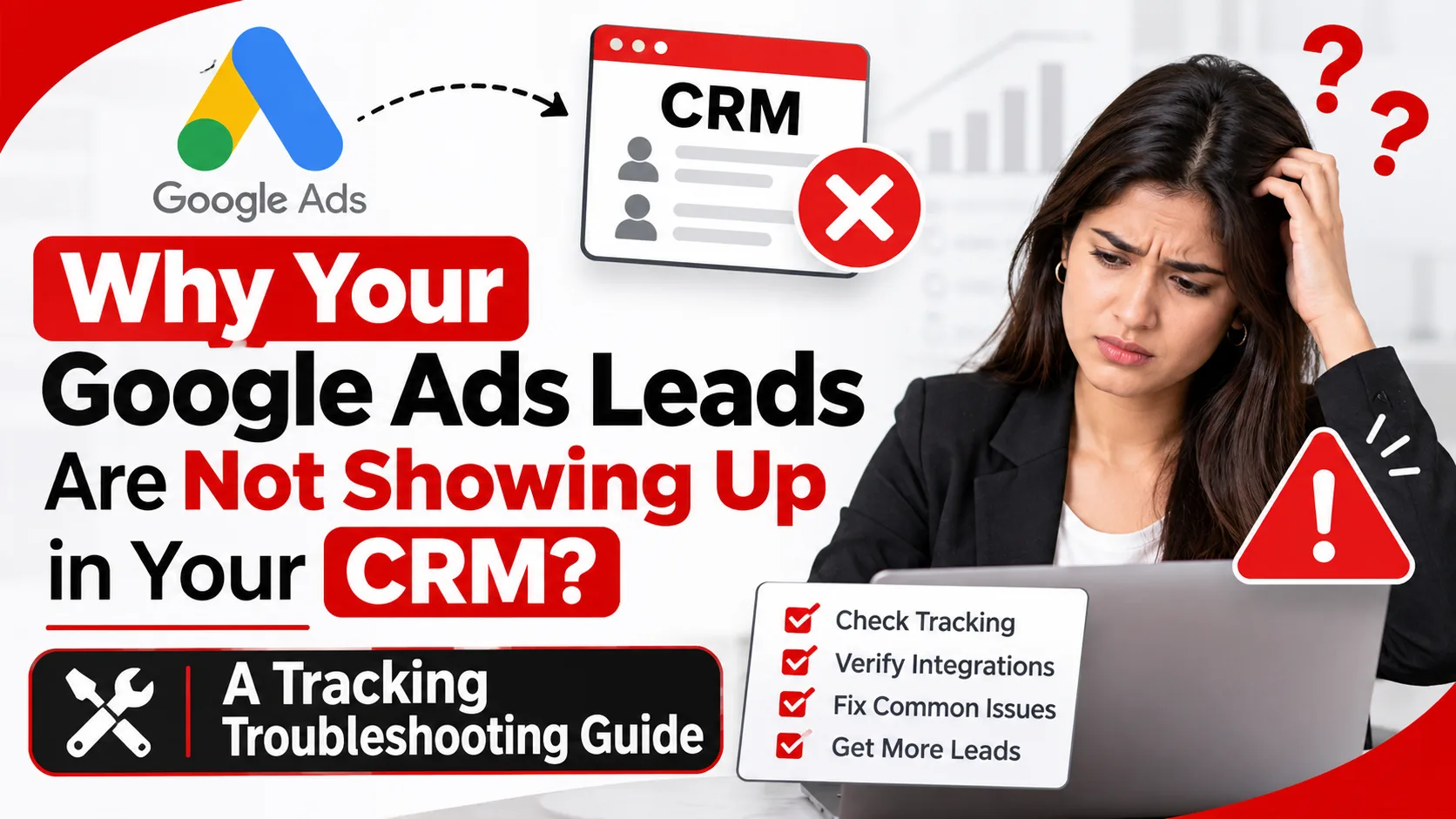
Picture a regional services company spending several thousand dollars a month on Google Ads. The dashboard shows 40 conversions, but on Monday morning the sales team finds 11 new leads in the CRM. Nobody can say whether the ads are working.
That gap usually hides three separate problems: a lead missing from the CRM, a conversion missing from Google Ads, or a lead that arrives with the wrong (or no) campaign source. Each has different causes and different fixes.
This guide shows you how to tell which one you have and which checks to run first. You don't need to be a developer, though some steps involve whoever manages your website, CRM, or tags.
Why Your Google Ads Leads Are Not Showing Up in Your CRM
Google Ads does not write website enquiries into your CRM. A visitor submits a form, your site or a form tool processes it, and an integration (an API call, webhook, plugin, or automation platform) creates the record. Conversion reporting is a separate process driven by tags and events. That is why a lead can exist without a conversion, and a conversion without a lead.
Common causes to investigate:
- Broken or expired integrations: often after a password change or revoked access.
- Form processing or webhook failures: where the form submits but the request to the CRM fails.
- API: authentication and permission errors.
- Field mapping problems: such as a required CRM field left empty.
- Duplicate detection or validation rules: that merge or reject the lead.
- Failed automation workflows: that break routing or assignment.
- Leads: in unexpected views or pipelines.
- Tracking: failures despite successful record creation.
Treat each as a hypothesis. A symptom ("leads dropped last week") is not a confirmed cause ("the API token expired on the 9th"), and the checks below separate the two.
First, Identify Where the Lead Is Missing
Follow one lead through three checkpoints: the website form, the CRM, and Google Ads. The first place the trail goes cold shows where to dig.
Use a controlled test with an obviously fake name and a mailbox you control, such as test+gads1@yourdomain.com. Don't use real customer data, and never paste passwords, API keys, or tokens into emails or tickets.
Check Whether the Website Form Submission Succeeded
Submit the live form from a fresh browser session. Confirm the confirmation message appears, and any notification email arrives. Then check the form tool's own entry log. If the test isn't there, the problem is upstream of the CRM: validation, spam filtering, a script conflict, or a form that shows a thank-you message even when processing fails.
Check Whether the Lead Reached the CRM
Search the CRM for your test email across contacts, leads, and any unassigned lists, then check the created date, owner, and pipeline. If it's missing, open the integration and automation logs for failures near your test time. A lead sitting in an unexpected view is a reporting problem. A lead that was never created is an integration problem.
Check Whether Google Ads Recorded the Conversion
In Google Ads, review the status of the relevant conversion action. "Unverified" or "Inactive" is normal for a new tag until Google records a first conversion or successful test event, per Google's conversion measurement documentation. To test the tag, use Google Tag Assistant or Google Tag Manager's Preview mode and confirm it fires once, only after a successful submission.
A CRM lead and a Google Ads conversion are not interchangeable. The record shows your integration worked. The conversion shows the tag fired, and Google can connect it to an ad interaction. Verify both.
Common Google Ads-to-CRM Integration Problems
Broken API Connections or Expired Authentication
Integrations depend on credentials such as OAuth connections, API keys, or service accounts. If the connected user leaves, a password changes, or access is revoked, the connection can fail silently. Check connection status, look in the log for authorisation errors, and confirm the integration user can still create and edit the relevant records. Re-authorising is often quick, but find out why it expired.
Incorrect Form Fields and CRM Field Mapping
A website redesign can rename or delete a form field while the CRM mapping still points to the old one. The CRM then rejects the record or creates it with blank data. Watch for required CRM fields with no matching form field, drop-down values the CRM doesn't allow, and phone or state formats it refuses.
Failed Webhooks and Automation Workflows
A webhook is an automatic message one system sends to another when something happens, such as a form submission. If the receiving URL changes, the endpoint is down, or the payload is malformed, the message fails. Review delivery logs and response codes, and check conditional logic (for example, "only create a lead if country equals United States") that could silently exclude real leads. Find out whether failures are retried and whether anyone is alerted.
Duplicate Detection and CRM Validation Rules
If an incoming email matches an existing contact, the CRM may update that record instead of creating a new one, or reject the submission. That can make a genuine lead look missing. Search by email, check the contact's activity timeline for a new submission, and review the duplicate and validation rules your administrator has set.
Delayed Data Synchronisation
Some integrations run on a schedule or queue. Before marking a lead as lost, compare the submission time with the integration's last successful run, check for queued or failed tasks, and review retry behaviour. Time zone differences can also confuse log comparisons.
Google Ads Lead Forms vs. Website Contact Forms
The troubleshooting path depends on where the lead was captured.
Google Ads lead form assets collect the enquiry inside the ad. Google's lead retrieval documentation describes the options, which include a CSV download, a webhook, a third-party integration, or the Google Ads API. Confirm which method you use, check the webhook URL and key, verify credentials and permissions for any API or third-party connection, and send a test lead. Also check the lead records inside Google Ads. If the lead is there but not in your CRM, delivery failed. The API retrieves up to 60 days of leads, so investigate promptly.
Website contact forms rely on your own backend. Focus on validation, spam filters, what happens on submit, whether the CRM call succeeds, and whether the conversion event fires only after success.
Third-party form builders and automation tools add layers. A builder may store entries correctly while a later automation step fails, or the reverse. Check the logs of each tool in order.
Why Google Ads Conversion Tracking Can Fail Even When Leads Reach the CRM
If CRM records look fine but Google Ads shows fewer conversions, investigate measurement separately, starting with Google's conversion measurement guide.
Incorrect Google Tag or Google Tag Manager Configuration
Typical problems include a missing Google tag, a trigger that never matches the real page or event, or a conversion tag attached to the wrong form. With Tag Manager, Google advises confirming that the Conversion Linker tag is set up correctly. Running several tracking methods at once, such as hard-coded gtag.js plus Tag Manager, can cause conflicts.
Conversion Events Firing Too Early or More Than Once
A tag that fires on a button click records intent, not an enquiry, so failed validations still count. The reverse also happens: a reloaded thank-you page or a trigger on every form interaction records duplicates. Trigger on a confirmed success state and verify it in Preview mode.
Missing Click Identifiers or Attribution Information
With auto-tagging on, the landing page URL can carry a Google click identifier (GCLID), which tags use to tie a conversion to an ad click. A redirect that strips URL parameters, a multi-page journey, or a form with no hidden field to carry the value into the CRM can all lose it. A missing GCLID affects attribution, not necessarily record creation, so the lead may appear with source "direct" or blank.
Incorrect Conversion Actions or Account Settings
Conversion actions can be primary (used for bidding) or secondary (observation only). If the wrong one is primary, or campaign goals exclude your lead action, the "Conversions" column may not show what you expect. Review these settings before concluding tracking is broken.
Consent and Browser Measurement Limitations
Consent choices and browser restrictions can reduce measurable conversions, but they rarely explain a total outage. Consider them after ruling out tag, trigger, and account configuration problems.
A Step-by-Step Troubleshooting Checklist
- Submit a controlled test enquiry with fake details and a mailbox you control.
- Verify form processing: confirmation message, notification email, and form-tool entry.
- Search the CRM for the test record, including unassigned views and other pipelines.
- Review API, webhook, and automation logs near the test time.
- Verify authentication, permissions, and field mappings.
- Check duplicate rules, validation errors, and CRM filters.
- Test the conversion event in Tag Assistant or Preview mode.
- Check click-identifier capture and attribution settings, including auto-tagging and hidden form fields.
- Verify the correct conversion action receives the event.
- Repeat the test and document the result at every stage.
|
Observed problem |
What to check |
Recommended next action |
|
Thank-you message shows, no entry in the form tool |
Validation, spam filters, script errors |
Fix form processing before touching the CRM |
|
Form entry exists, no CRM record |
Integration logs, webhook responses, authentication |
Repair the connection, then retest |
|
CRM record exists, but sales can't find it |
Pipeline, owner, status filters, saved views |
Adjust routing or views |
|
Existing contact updated, no new lead |
Duplicate rules, matching logic |
Decide if intended; adjust rules |
|
Lead form leads missing in CRM |
Delivery method, webhook URL and key, permissions |
Send a test lead and fix the integration |
|
CRM has the lead, no Google Ads conversion |
Tag firing, trigger, conversion action status |
Test in Tag Assistant or Preview |
|
Conversions exceed CRM leads |
Click-based events, duplicate firing, page reloads |
Tie the event to a confirmed submission |
|
CRM lead shows "direct" or no campaign |
GCLID capture, redirects, hidden fields |
Preserve the identifier into the CRM |
Once you've found the failing stage, you have the evidence to decide whether to fix it in-house or get help.
How to Prevent Google Ads Lead Tracking Problems
Tracking failures are usually quiet.
A few habits catch them early:
- Monitor integrations with failure alerts that reach a person, not just a log.
- Run end-to-end tests on a schedule and after every site, form, CRM, or tag change.
- Keep campaign data consistent, with clear naming and no redirects that strip URL parameters.
- Check after deployments, since redesigns, plugin updates, and consent banner changes are frequent culprits.
You can also feed CRM outcomes back to Google Ads to evaluate lead quality, not just volume. Where supported and properly configured, this can use enhanced conversions for leads or offline conversion imports. See Google's documentation on enhanced conversions for leads and offline conversion imports. Google has stated that from June 15, 2026, these uploads move to the Data Manager API, so confirm current requirements before building. GCLID-based imports must fall within 90 days of the click.
When Should You Hire a Google Ads Tracking Specialist?
Consider help when fixes keep breaking again, your CRM setup is complex (multiple pipelines or form sources), conversion events are missing or double-counted, attribution disagrees across Google Ads, analytics, and the CRM, or reports are too unreliable to guide budget.
A proper audit should examine, before recommending changes:
- The full path from ad click to landing page to form to CRM.
- Tag, trigger, and conversion action configuration.
- Integration credentials, permissions, logs, and error handling.
- Field mapping, duplicate rules, and workflow conditions.
- How click identifiers are captured and stored.
- Whether anyone is alerted when something fails.
Finding the failure point first also protects your budget. Changing keywords or bids on broken data only optimises against noise.
How Ingenious HiTech Can Help
Ingenious HiTech is a digital marketing agency working across SEO, web development, and performance marketing.
For lead-tracking problems, we can scope a review of:
- Google Ads conversion tracking setup.
- Website form and CRM integration behaviour.
- Google Tag Manager and analytics implementation.
- API and webhook failures.
- Lead attribution and reporting.
- Website changes needed to support reliable tracking.
We start by locating where data is lost and sharing what we find before recommending changes. If your Google Ads leads aren't showing up in your CRM, contact Ingenious HiTech to discuss a tracking review.
Frequently Asked Questions
1. Why are my Google Ads leads not showing up in my CRM?
Usually the handoff between form and CRM fails: a broken integration, expired credentials, a failed webhook, a mapping error, a duplicate or validation rule, or a failed workflow. Trace a test lead through the form, CRM, and Google Ads to find where it stops.
2. Why does Google Ads show conversions but my CRM has no new leads?
A tag may fire on a button click or page reload instead of a confirmed submission, or the CRM integration may be failing while the tag works. Compare form entries with CRM records to see which side is off.
3. Why are leads missing from my CRM but visible in Google Ads?
If they came from a lead form asset, check the delivery method, credentials, and webhook URL and key. API retrieval covers up to 60 days of leads, so recover missed ones promptly.
4. How do I check whether my Google Ads lead form is connected to my CRM?
Open the lead form asset's settings, review how leads are exported, send a test lead, and confirm it appears in the CRM. If not, check the integration logs.
5. Can Google Tag Manager fix missing CRM leads?
Not by itself. It can fix measurement issues like a wrong trigger or missing conversion tag, but it won't repair a failed CRM connection, webhook, or field mapping.
6. How often should I test my Google Ads-to-CRM integration?
After any change to your website, form, CRM, tags, or consent setup, and on a regular schedule such as monthly. Add failure alerts so problems surface between tests.
Conclusion: Fix the Tracking Process Before Changing Your Campaigns
Separate three questions: did the lead reach the CRM, did Google Ads record the conversion, and did the right campaign information travel with it? Answering them in order, with a documented test, usually exposes the broken step quickly. Fix delivery first, then measurement, then attribution.
If you'd like help finding the failure point, get in touch with Ingenious HiTech to discuss your tracking and CRM integration issues.